 COME
COMERead the COME Check Update Row in Context
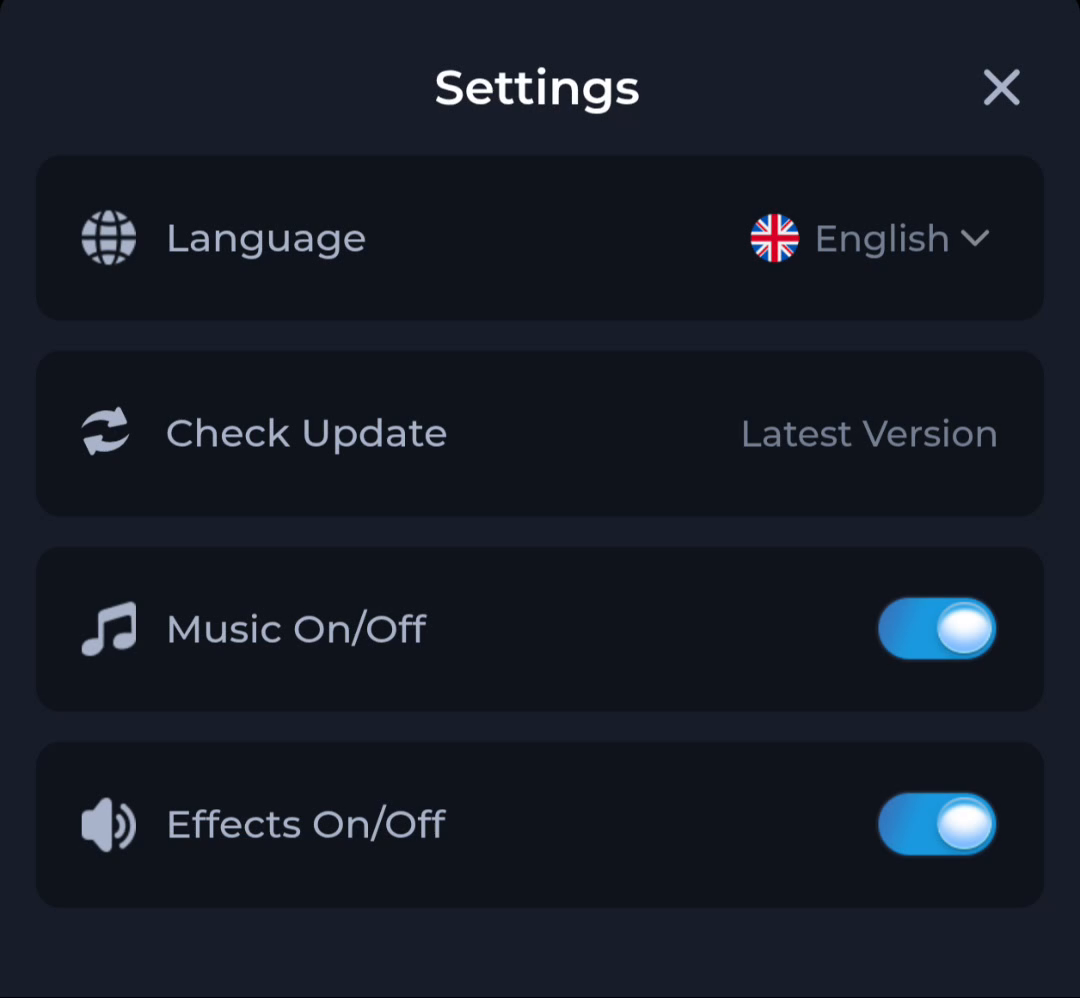
The Check Update row belongs to app settings. Read its current status, then compare an actual release number if you need to decide whether an offered APK is the intended update.
Keep adjacent controls separate
Language, Check Update, Music and Effects appear as distinct Settings rows. Check the installed package through app information when a version comparison is needed. Start with the specific control connected to your question.
Use a numbered release for comparison
The displayed words “Latest Version” do not identify a numbered release. Find the installed version in app information when available and compare it with the current offer. Do not replace the missing number with a browser filename or check date.
Observe the update result
If the update route leads to a file, check the destination, completed transfer and Android response separately. A changed status label does not prove installation. Open the app after an accepted update and inspect the original task again.
A useful next step
Use the download page to connect the Settings check with the Android package sequence, while keeping the working app and recovery method available.